
To get started, students should sign in to their Aquifer account. Any student user with an active subscription will have access to all questions associated with their subscription.
- Within a Case: At the end of the case, you'll see options to open questions or save them to your to-do list. The Questions button is also available at the top of the page for easy access.
- From Case Lists: In Patient Library, courses, and your to-do list, look for the Questions button associated with your cases to jump to the related quiz or save it to your to-do list.

-
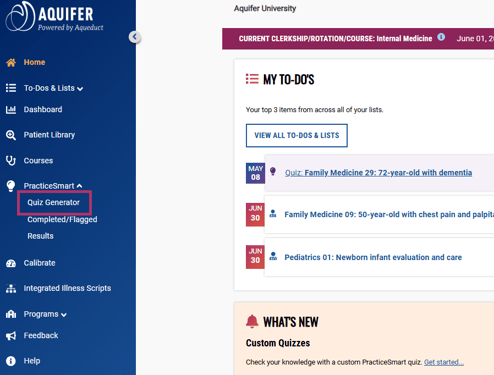
From the Quiz Generator: Use the side navigation to jump to the Quiz Generator to customize your self-assessment to meet your needs.
Quiz Generator
The updated Quiz Generator uses separate tabs to organize the available quiz options. Depending on your program’s subscription, you may be able to:
- Complete a PracticeSmart Essentials quiz
- Create a quiz from an Aquifer course
- Create a custom quiz using selected filters
- Create a quiz from one or more items on your To-Do List
NEW: Complete a PracticeSmart Essentials Quiz
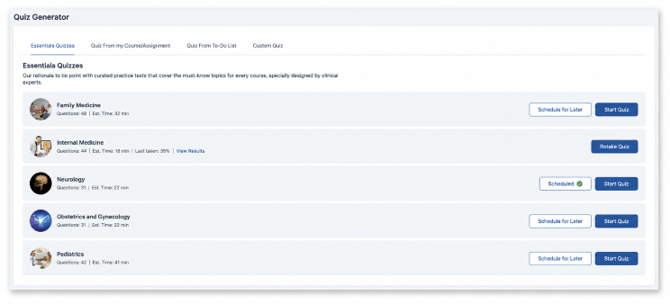
PracticeSmart Essentials quizzes are comprehensive quizzes organized around major clinical disciplines. You can now study more intentionally with discipline-specific quizzes curated with Aquifer cases. They allow you to study by identifying strengths, gaps, and areas needing further focus.
Key features include:
- Educator-Curated Quizzes: Practice quizzes that help students identify knowledge gaps.
- Personalized Learning Pathways: Unlike traditional quizzes, Practice Smart Essentials provides a clearer path forward after completion. Aquifer cases are surfaced to help reinforce weaker areas, creating a more focused, personalized study plan.
- Self-Directed Loop: The tool is designed to encourage a self-directed learning cycle where students can prioritize assignments and identify what they need to remediate.
Note: The Essentials quizzes available to you depend on your program’s Aquifer subscription.
To complete an Essentials quiz:
- Open the Quiz Generator from the PracticeSmart dropdown on your menu.
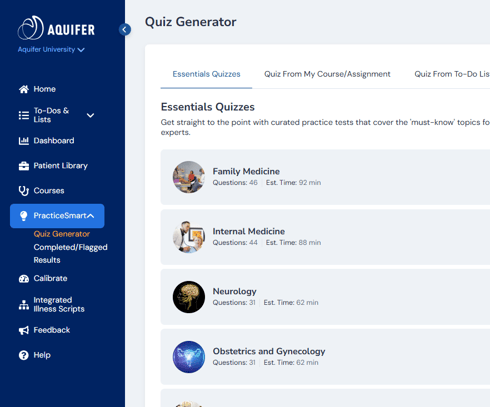
- Select the Essentials Quizzes tab.
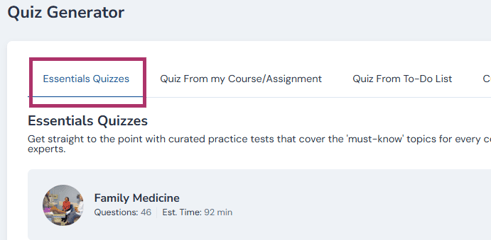
- Find the clinical discipline you want to review. You’ll find the number of questions in the quiz and estimated time to complete the quiz located on the respective quiz card.
- Select Start Quiz to begin. You can also schedule the quiz for later by selecting the option to Schedule for Later. Scheduling to take the quiz later will prompt you to select a To-Do List to add the quiz to and a date to take the quiz. This quiz can be removed from your list by going to your selected To-Do List, selecting the quiz, then using the three dot select to choose remove.
Essentials quizzes may be longer than other PracticeSmart quizzes. When available, you can choose to schedule a quiz for later rather than beginning it immediately.
Tip: Use an Essentials quiz for a comprehensive knowledge check. Review your results afterward to identify strengths, knowledge gaps, and cases that may support your next steps.
Create a Quiz from a Course
Create a course-based quiz when you want to practice questions connected to cases in one of your Aquifer courses.
Tip: This is a great way to have additional practice aligned with your course content.
To create a course-based quiz:
- Open the Quiz Generator from the PracticeSmart dropdown on your menu.
- Select the Quiz from my Course/Assignment tab.
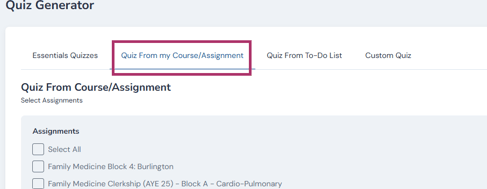
- Choose the Aquifer course(s) you want to use.
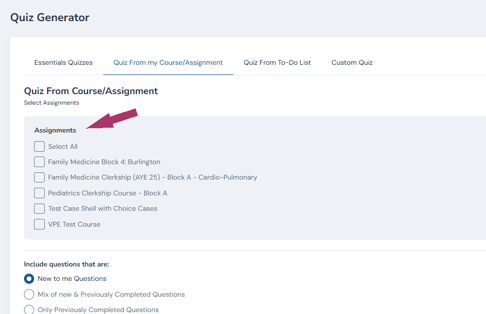
- Choose which questions to include. Selecting the option that best fits your goal for completing the quiz. You can review questions you’ve previously completed, include questions that are new to you, or a mix of both. You can also choose to include questions from cases you’ve completed, not completed, or any completion status.
- Enter the number of questions you want. Keep in mind the more questions you add, the longer the quiz will take to complete.
- Create and begin the quiz.
Tip: A course-based quiz is ideal for a pre-test, review, or overall knowledge check. Use your results to better understand your knowledge gaps and strengths and prioritize your case time.
Create a Quiz from Your To-Do List
You can create one PracticeSmart quiz using questions connected to one or more items on your To-Do List.
To create a quiz from your To-Do List:
- Open the Quiz Generator from the PracticeSmart dropdown on your menu. Or choose the available quiz option from your To-Do List.
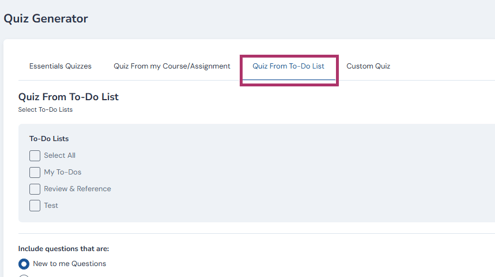
- Select one or more To-Do List items to include.
- Enter the number of questions you want.
- Create and begin the quiz.
This option allows you to bring together questions from several cases, assignments, or study priorities in one place.
Tip: Use this option when you have saved several related cases or questions and want to review them together.
Create a Custom Quiz
Use the custom quiz tab to go beyond a specific course or rotation and target particular topics, areas of performance, or clinical focus areas.
Customization Options:
- By Topic: Select questions by body system, clinical focus, clinical excellence topics, or clinical location.
- By Performance: Choose questions based on completion status, such as new, previously completed, or those you got wrong.
- Number of Items: Enter the number of questions you want; a dynamic number will show available questions based on your selection.
To create a custom quiz:
- Open the Quiz Generator from the PracticeSmart dropdown on your menu..
- Select the Custom Quiz tab.
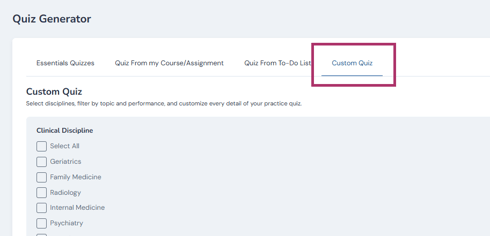
- Apply the selections that support your study goal. You can select disciplines, filter by topic and performance, and customize every detail of your practice quiz.
- Choose which questions to include. Selecting the option that best fits your goal for completing the quiz. You can review questions you’ve previously completed, include questions that are new to you, or a mix of both. You can also choose to include questions from cases you’ve completed, not completed, or any completion status.
- Enter the number of questions you want.
- Create and begin the quiz.
You do not need to use every available filter. If you do not apply additional filters, your quiz will be generated from a random selection of the questions available within your broader selections.
Tip: Custom quizzes are useful for focused study in key areas. Need to brush up on diagnosing gastrointestinal conditions? Feeling behind on respiratory diagnoses? Use the customization filters to focus on the areas you need.
Question Player
When you begin a quiz, you will be directed to the PracticeSmart question player. The first step allows you to choose the mode you want to work in:
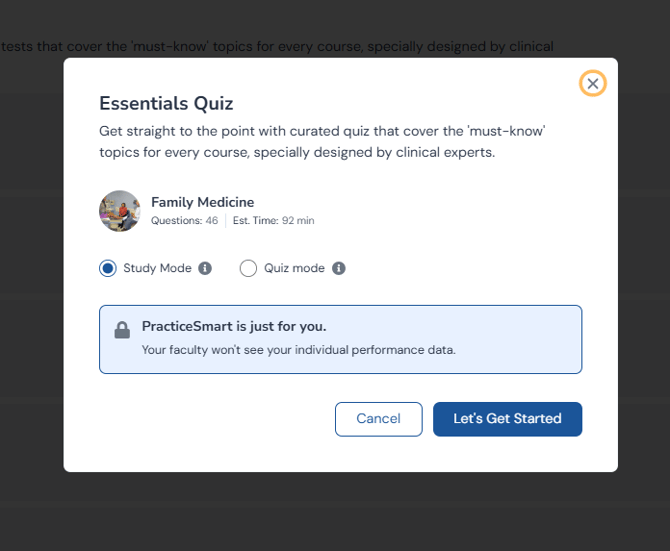
- Quiz Mode: Complete questions consecutively and review answers after finishing.
- Study Mode: Review answers and explanations after each question.

Taking Action
In addition to reviewing the answer and answer explanation, students can follow up on their learning from the question player in the following ways.
- Add related case to To-dos:
Were you wrong and certain about a question? Need to review this concept in more detail? Add the related case to your to-dos (don't forget to add a note about why you're adding it) and review it later. - View the related case:
Jump directly to the source and follow up in full clinical context. - Review Teaching Point:
View the details of a related teaching point to enhance your learning. - Flag for Review:
Want to come back and view the questions or answer explanation later? Flag the question for review and automatically save it to your Review & Reference list.
Reviewing Your Results
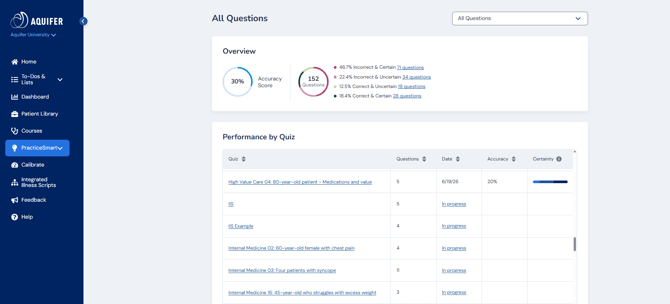
The PracticeSmart results screen provides an overview of your performance on all questions, and for each of your quizzes. You can toggle between views of the types of questions to include in the results using the dropdown at the top of the page.
Review Your Accuracy and Certainty
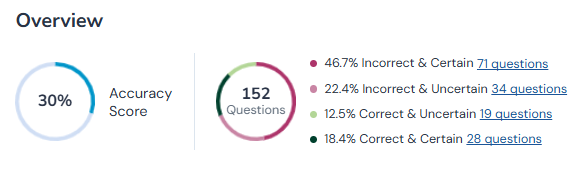
Do you have a true knowledge gap, or was it just a lucky guess? Are your accuracy and certainty aligned, or are you wrong when you were sure you knew the answer?
Now you can differentiate to better focus your study. Review the items on an individual quiz, or for all of PracticeSmart, by how your knowledge and certainty align. Click on the links to view the questions, answers, and answer explanations in each area and decide how to take action.
Tip: Focus on the dark pink areas where you were wrong, but certain you were correct. Misaligned certainty can indicate a trouble spot.
Results by Quiz (All Questions View only)
View your performance over time for each quiz you've completed. You can also find your in-progress quizzes here if you need to pick up where you left off.
Results by Body System, Clinical Focus, Clinical discipline
View your accuracy and certainty by category to identify trends in your performance.
Completed and Flagged-for-Review Questions
View all your completed questions, including details such as:
- Your answer
- The correct answer
- The answer explanation
- Your certainty rating
- The related case or teaching point
Use the filters at the top of the page to find questions by:
- Accuracy
- Certainty
- Quiz
- Body system
- Other available categories
You can also choose to include or exclude reset questions or view only questions you flagged for review.
From this screen, you can reset questions you want to answer again or create a new quiz using selected questions.
Tip: Consider creating a quiz from all the questions you answered incorrectly or from all your flagged-for-review questions.
Use Your Results to Guide Your Study
PracticeSmart results are intended to support your own formative learning.
After reviewing your results:
- Look for questions where your accuracy and certainty were not aligned.
- Identify body systems, disciplines, diagnoses, or clinical focus areas that need additional attention.
- Review the explanations for questions you answered incorrectly or with low certainty.
- Open recommended or related Aquifer cases.
- Add useful cases or questions to your To-Do List.
- Create another focused quiz when you are ready to check your understanding again.
PracticeSmart FAQs
What is PracticeSmart?
PracticeSmart is a flexible tool for self-assessment that drives self-directed learning and extends student learning beyond Aquifer's cases. PracticeSmart quizzes can be accessed at the end of each case to check your knowledge, or customized through the Quiz Generator to focus your learning and help prioritize your study plan.
PracticeSmart questions are multiple-choice with a certainty rating. After completing the questions, you'll immediately see the answer and answer explanation.
Each PracticeSmart question is linked to an Aquifer case and designed to assess your understanding of key teaching points within that case, which means you'll be able to follow up on knowledge gaps in full clinical context.
What is PracticeSmart Essentials?
PracticeSmart Essentials is a collection of comprehensive quizzes organized around major clinical disciplines.
Essentials quizzes allow you to check your knowledge, identify areas that may need additional review, and receive recommended next steps based on your results.
Why do I not see every Essentials quiz?
The Essentials quizzes available in your account depend on your program’s Aquifer subscription.
You will see only the quizzes included with your subscription access.
Can I schedule an Essentials quiz for later?
When the scheduling option is available, you can choose to schedule an Essentials quiz for later rather than beginning it immediately.
How does PracticeSmart help me study?
PracticeSmart questions are always clinically-focused, just like what you'll be asked on rounds. Like all of Aquifer, PracticeSmart is designed to improve clinical decision-making skills.
PracticeSmart provides a safe space for student learning that can help identify gaps in your knowledge. Faculty won't see your PracticeSmart results-they are just for you.
Check your clinical knowledge and see if your accuracy and certainty align to identify true knowledge gaps. Find out if you truly know, or just had a lucky guess, and understand key areas where your accuracy and certainty are misaligned.
Focus your study time by prioritizing cases most meaningful to your learning based on your current strengths and weaknesses with completely customizable quizzes.
How is PracticeSmart different from other question banks?
Links to trusted cases for deep learning in clinical context: Because every PracticeSmart question is directly linked to an Aquifer case, students know where to look to advance learning in the context of a realistic patient encounter.How are Essentials quizzes different from course-based or custom quizzes?
Essentials quizzes are prebuilt, comprehensive quizzes organized by major clinical discipline.
Course-based quizzes use questions connected to cases in a selected Aquifer course.
Custom quizzes allow you to choose specific topics, performance criteria, clinical focus areas, and the number of questions you want to include.
Can I create a quiz from more than one To-Do List item?
Yes. You can select questions connected to one or more To-Do List items and combine them into a single quiz.
Can my instructor see my PracticeSmart results?
No. PracticeSmart is for formative self-study. Educators do not have access to your individual PracticeSmart performance results.
When should I use Study Mode?
Use Study Mode when you want to review explanations after each question and learn as you go.
When should I use Quiz Mode?
Use Quiz Mode when you want to practice in a more exam-like format and review answers after completing the quiz.
How can I use PracticeSmart after a case?
At the end of a case, open the related PracticeSmart questions or save them to your To-Do List for later review. This can help reinforce the teaching points from the case.
How can I use PracticeSmart to prepare for an exam?
Use the Quiz Generator to create a quiz based on the content you want to review. You can create a broad review quiz or apply filters to focus on a specific discipline, topic, diagnosis, body system, clinical focus area, previous performance, or flagged questions.
Why does my case still show as incomplete after using PracticeSmart?
PracticeSmart activity and case completion are separate. If a case still shows as incomplete, return to the assigned case, go to the end, and select Finish Case. A case may also show as incomplete if you opened a different version of the case, lost your connection before completion was saved, or did not complete the final required step.