
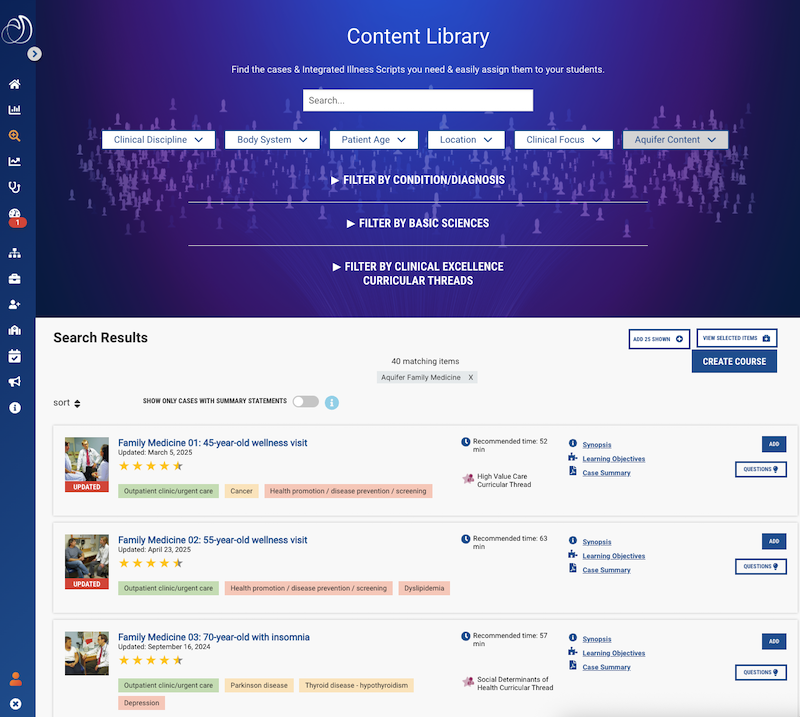
Content Library: Filter and Keyword Search Options
The searchable content library includes a series of dropdown filters, which allow you to search for Cases and Integrated Illness Scripts by:
- Clinical Discipline
- Body System
- Age Group
- Clinical Location
- Clinical Focus
- Aquifer Content
- Condition/Diagnosis
- Presenting Problem
- Final Diagnosis
- Other Diagnoses Taught
- Basic Sciences
- Basic Science Disciplines
- Sciences Core Concepts
- Clinical Excellence Curricular Threads
- Clinical Excellence
- Clinical Principles
Use a combination of the filters above to quickly find the content you need to build a course or select specific content for remediation.
You can also use the free text search field to conduct a keyword search, which includes text in the case and script titles, synopses, and learning objectives.
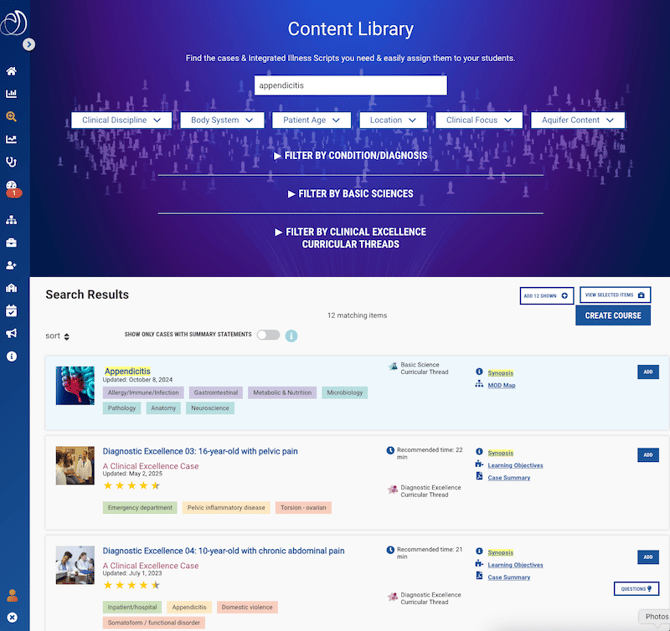
Detailed Case List Display
The detailed content list display will include the Aquifer cases and Integrated Illness Scripts, which meet your search criteria and are available through your program's subscription. If your program does not subscribe to a course, scripts, or case set, that content will not display in the search.
From the display list, you can quickly view more information about the content to determine if it fits your needs. For cases, you can scan the case or script metadata, Basic Sciences or Clinical Excellence Curricular Threads, recommended time, case synopsis, learning objectives, and detailed case summaries available to students on completion of the case. For Integrated Illness Scripts, you can scan the synopses and Mechanism of Disease Maps for each script.
For cases with PracticeSmart questions, you can also click on the “Questions” button to preview the questions students can access from the student-facing Patient Library, at the end of a case, or from the PracticeSmart Quiz Generator.
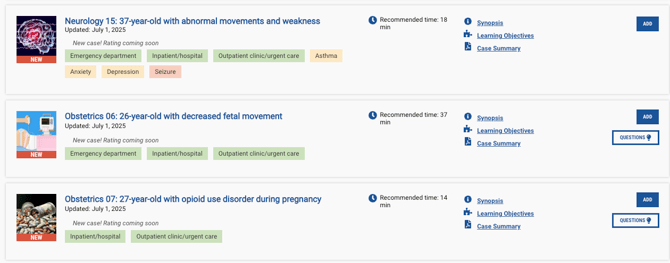
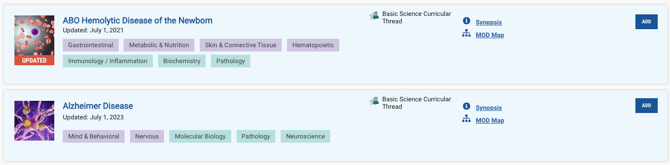
Aquifer Cases and Integrated Illness Scripts are authored and continuously updated by the expert healthcare educators who make up the Aquifer Consortium. Content authors and the date the content was last updated are displayed for each item, so you can be sure your students are being provided up-to-date content written by your trusted peers.
You can also access all cases and scripts directly from this page by clicking on the title. Unlike students, as an administrative user, you have ungated access to the cases, so that you can access all content at once without answering questions as you advance.
Put Your Content to Work
Once you have selected the content you need, you can build a course directly from the Content Library page. You can choose content to assign to students to prepare for or review key clinical situations or concepts.