
Questions are multiple-choice, board-style vignettes with a clinical focus–the kind of questions you’ll be asked on rounds. You’ll rate your certainty for each answer to improve the depth of your results, helping you understand where your certainty and accuracy are misaligned. There are no scores-Calibrate is designed for your learning.
Accessing Calibrate
Calibrate is assigned by the faculty or administrators at your school who will set a window of time for when your assessment must be completed.
When the window is open, you will be notified by email. Click on the link in the email, or sign in to your Aquifer account to take your assessment. You can also access your assessment from the Calibrate menu option that will appear when you have a Calibrate assessment to complete.
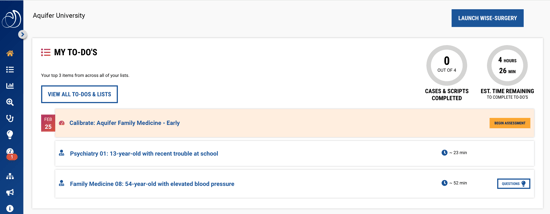
Completing the assessment
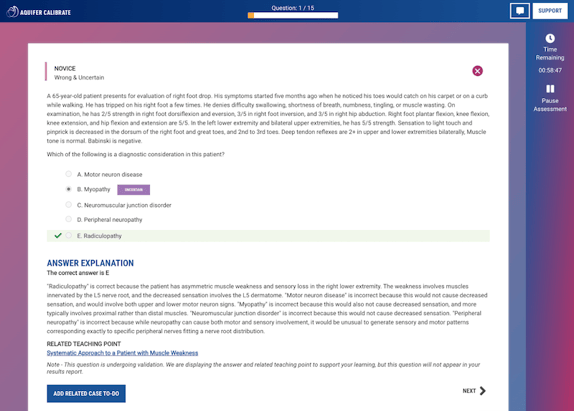
- Make you're using a stable internet connection to complete your assessment - interruptions in your connections may interfere with your assessment causing errors.
- Your assessment has a time limit. Be sure to set aside time to complete the assessment.
- You can pause the assessment for up to 20 minutes if needed.
- You won’t be able to go back and review your answers. You’ll need to commit to a decision and move on.
- Rate your certainty to identify true knowledge gaps. Take the time to accurately rate your certainty to help you make the most of your results.
- You’ll see the correct answer and explanation after each question. Note: You won’t be able to view this information later, so take the time you need. Your time limit allows a generous amount of time for this.
- Each question relates to an Aquifer case. You can add the related case to your to-dos to help you fill the gaps you identify.
- Before starting your assessment, you can opt to automatically add all related cases for questions you got wrong to your to-do list.
- You can also opt to add cases on your own as you go through your results.
Review Your Calibrate Results
After completing your assessment, you have immediate access to your results.
Calibrate provides reports that give you what you need to create efficient study plans, track your progress, target learning before an end-of-course exam, and have productive conversations with your faculty to guide your learning.
Accessing Your Results
At the conclusion of your Calibrate assessment, you will be taken directly to your results.
To access your Calibrate reports later follow the steps below.
From your Dashboard:
-
Click on Dashboard in the side navigation.
-
Scroll down to the Calibrate Summary card and click on the Results link for the assessment you want to view.
From your Home page:
- Sign in to Aqueduct.
- Go to the Assessment area and open your completed Calibrate assessment.
Results Overview
Calibrate assessments are focused on formative assessment, and do not include a score.
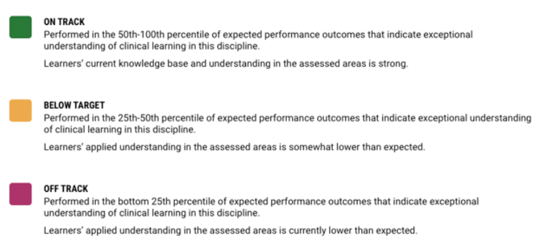
The Results Overview tab allows you to easily gauge your overall performance. The red, yellow, or green block indicates where you performed compared to peers who take the same assessment at the same time during their clerkship or rotation (early or late). This metric considers accuracy, certainty, and efficiency.
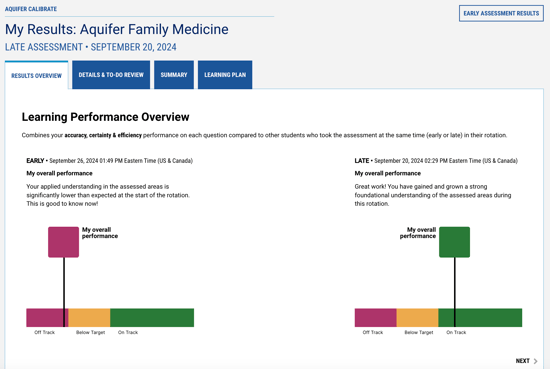
If you have taken both an early and late assessment in the same discipline, both results will appear here to show your progress when you view late assessment results.
Details & To-do Review Tab
The next tab calibrates your knowledge and certainty to help you identify where your knowledge and certainty were aligned – or misaligned.
Clinical Learning Calibration
Each item you complete is categorized by Clinical Learning Calibration. This metric considers accuracy, certainty, and efficiency. The graph at the top of the page allows you to easily see how closely aligned your accuracy and certainty are - and how your performance compares to your peers.
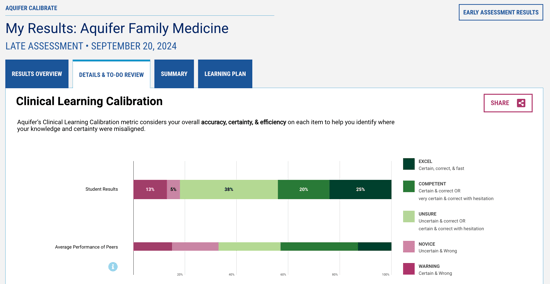
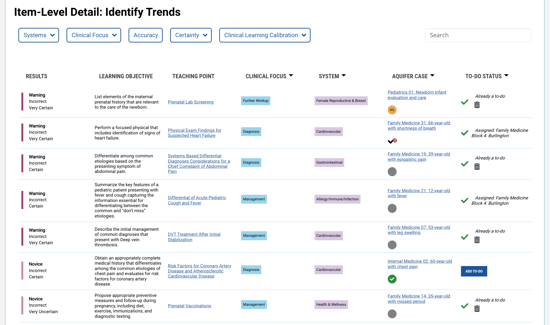
Below, the Item Details section shows item level results that include learning objectives and teaching points. Sorting by clinical learning calibration allows you to quickly zero in on trouble spots. Each item is linked to a related case, proving a clear and trusted next step to fill knowledge gaps in full clinical context. You can see if an item is already assigned to you or on your to-do list.
Sort by body system or clinical focus to identify trends in your learning to help hone your study plans.
Summary
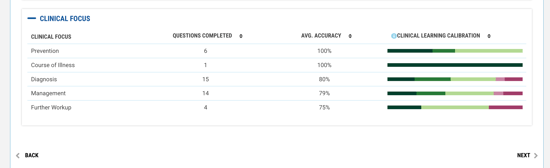
The Summary tab examines your performance by body system and clinical focus, showing average accuracy and clinical learning calibration data to help you easily identify trends in your learning, or areas of accuracy and certainty misalignment.
The Clinical Learning Calibration column acts like a heat map, allowing you to easily scan for trouble areas (in cranberry) vs areas of strength (in dark green).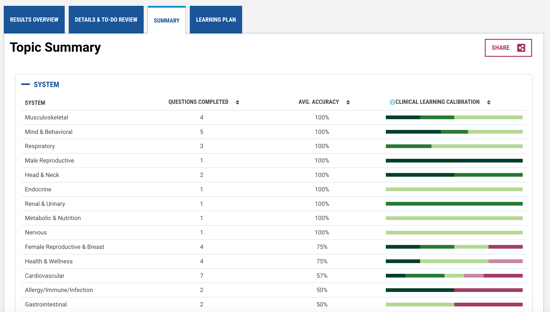
Learning Plan
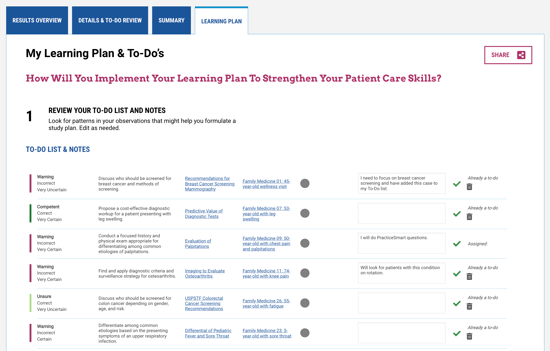
The Learning Plan tab allows you to reflect on your learning and create an action plan you can share with your faculty or coach.
The Learning Plan displays a review of your to-do list for all cases related to this assessment.
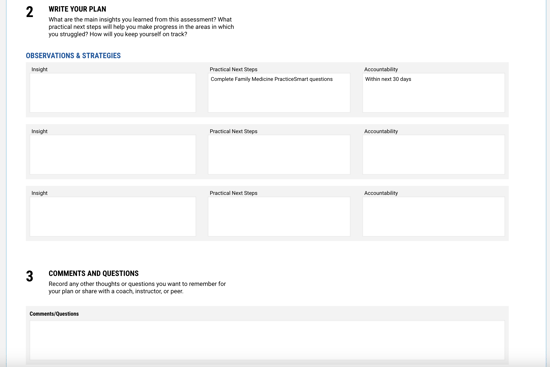
Next, you can list the main insights you have gained from analyzing your results, or considering your performance throughout your course or rotation. You can ask yourself what your next steps will be to help you progress in the areas in which you struggled and how you will keep on track.
Section three allows you to record any other thoughts or questions you want to remember for your plan or to discuss with a coach or faculty member.
You can share your plan and results with a coach or anyone who can help you refine and implement your plan.
To share your results, use the Share button on the top right of your results page and enter the email address of your faculty or coach. They will receive an email alert with a link to view an accessible version of your results.
Calibrate FAQs
Is Calibrate graded?
No. Calibrate assessments are formative and do not include a score. They are designed to support your learning by helping you identify where your knowledge, certainty, and efficiency are aligned or misaligned.
How do I access my assigned Calibrate assessment?
Sign in to Aqueduct, select Assessment from the left-hand toolbar, and open the assigned Calibrate assessment. You may also receive an email when the assessment window opens.
What should I do before starting a Calibrate assessment?
Confirm the assessment deadline, make sure you are signed in with your institutional email address, use a supported browser, check your internet connection, close unnecessary browser tabs or applications, and read any instructions from your program.
Can I pause a Calibrate assessment?
Yes. You can pause the assessment for up to 20 minutes if needed. Be sure to return within the allowed pause time so you can continue your assessment. If you do not un-pause before the 20 minutes have elapsed, your pause will time out and auto-submit your assessment.
Can I go back and change an answer?
No. You will not be able to go back and review or change your answers. Commit to a decision and move on.
Why do I need to rate my certainty?
Your certainty rating helps Calibrate identify where your confidence and accuracy are aligned or misaligned. This can help you recognize true knowledge gaps, areas where you may be overconfident, and areas where you may know more than you realize.
Why does Aquifer Calibrate include certainty in addition to accuracy?
Aquifer Calibrate includes certainty because getting an answer right or wrong is only part of the picture. How confident you feel about your answer can help you better understand your learning.
For example, if you are very certain about an answer that turns out to be incorrect, that may point to a misconception you can correct. If you get an answer right but feel unsure, that may show an area where you understand more than you realize, but still need practice to feel confident.
By looking at both accuracy and certainty, Calibrate helps you recognize what you know well, where you may need more review, and where your confidence may not match your understanding.
Will I see the correct answer?
Yes. You will see the correct answer and explanation after each question. You will not be able to view the explanation later, so take the time you need before moving to the next question.
What happens after I complete a Calibrate assessment?
You will have immediate access to your results. Your reports can help you review overall performance, item-level results, topic trends, related cases, To-Do List items, and your Learning Plan.
Where can I find my results later?
You can access your results from the completed assessment in the Assessment area. You can also go to Dashboard, scroll to the Calibrate Summary card, and select the Results link for the assessment you want to view.
What should I do if I do not see my assigned Calibrate assessment?
If you still do not see the assessment, contact your course director, clerkship director, or coordinator to ensure you've been assigned the assessment.
Who should I contact if I have technical trouble?
Contact Aquifer Support if your program confirms the assessment was assigned and you still cannot access it, or if you experience technical issues that prevent you from completing the assessment.