
If you are registering for the first time:
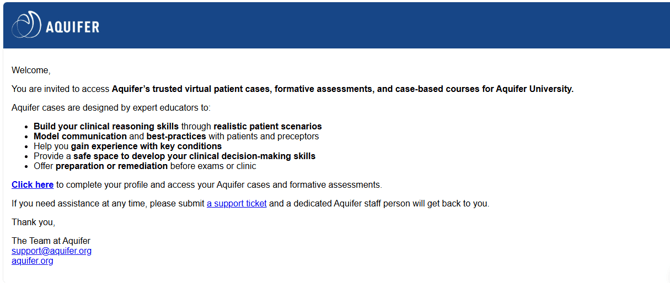
1. You will be sent an email with a link to complete registration. Upon receipt of the registration email, click on the link Click Here. You will then be brought to the profile setup page.
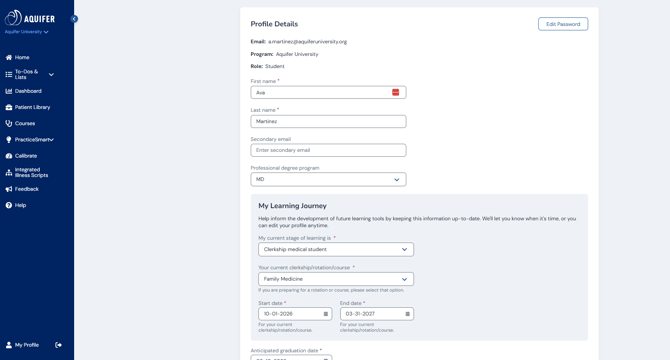
2. You will be asked to fill in your profile information and set up a password (12-character minimum). Once you have completed your user profile and created a password, you will receive a welcome email with links to useful information and guides. You would also be logged into the Aqueduct learning management system.
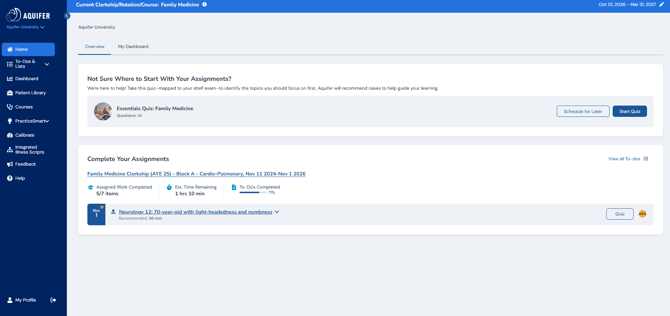
3. Once your profile is completed successfully, you will be brought to your home page.
4. You will also receive a Thank you for registering with Aquifer email with links to tools, resources, and Aquifer news.

Now your sign in will be quick and easy. Go to Aquifer.org and click Sign In in the top right corner, then enter your institutional email and password.
How do I sign in after completing my profile?
1. Once you have completed your user profile and created a password, your sign in will be quick and easy. Go to Aquifer.org and click Sign In in the top right corner.

2. You will then be brought to the Aqueduct sign in page. Please log in with your institutional email and account password and click Sign In.
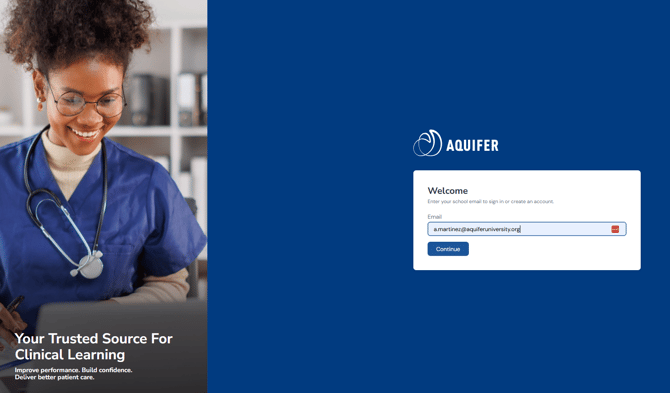
1. If you forget your password, Aquifer can help you regain access to your courses and information right away. From the Sign In page, click the Forgot Password link.
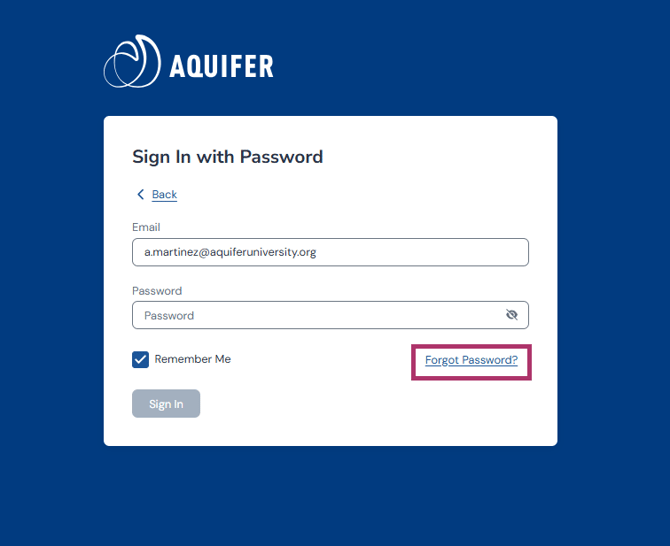
2. You will be brought to a page where you can enter your Account email address. After entering your email address, click Send me instructions to set my password.
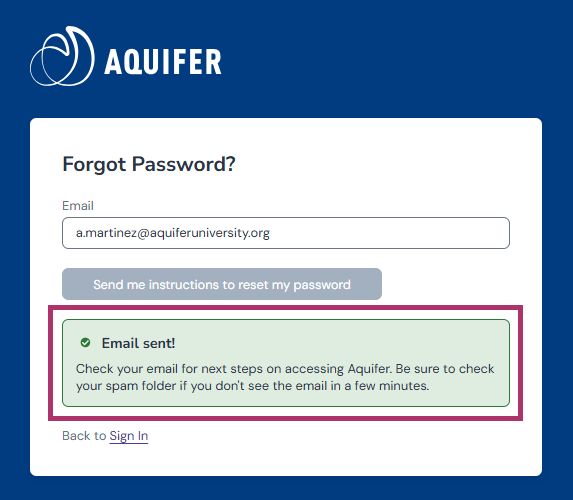
3. You will receive an email with instructions to reset your password. If you do not see this email, check your spam mailbox. Follow the instructions in the email to reset your password. Click the link to reset your password.
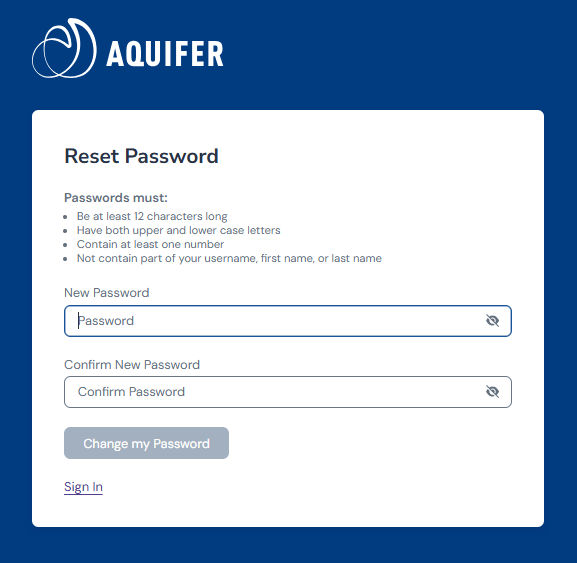
4. You will then be brought to a page where you can reset your password. Please put in your new password twice to confirm and click on Change my password. You will then be logged in with your new password.
View details on Reporting for Students.
How do I reset my cases if I want to complete them again?
Learn how to reset your cases.
Completed cases show on all reporting as a green circle with a check mark.
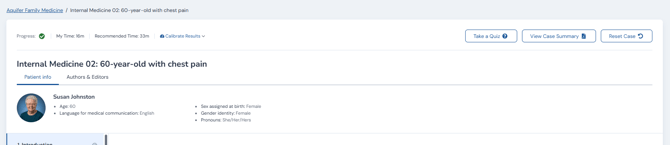
Be sure to complete the required feedback questions at the end of the case. After you have completed the three feedback questions, your case will be marked as complete and you can proceed to next steps.
If you do not complete the feedback questions or finish the questions in your case, your case will show as still in progress with a yellow circle and your progress percentage.
We hope that all learners will share their honest feedback. We will review this feedback and use it to help ensure that we are offering the best possible learning materials.