
-
Students will need to re-take the case to record a completion.
-
Faculty and administrators can view each case reset in their reports.
-
On Student Reports, a black outline will show around the circles indicating progress on the cases that have been reset.
Why Reset a Case?
A student may wish to reset a case to go through it again in a complete way, revealing information step-by-step as they move through the case and answering embedded assessment questions and Virtual Patient Encounters. Although the case content is available to students after case completion, the information will appear all at once (ungated) and questions will show previous answers and chat transcripts. Resetting the case will remove all previous data, allowing students to repeat the original case experience.
How to Reset a Case
-
From the Course detail page, click on the "Reset" button on the complete or in progress case you wish to reset.

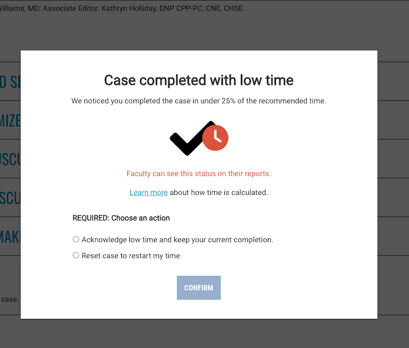
- If a student completes a case in low time, they are informed at the end of the case with a modal and given the option to reset at that point.
- Students can also reset completed cases from within the case, using the reset button in the top right corner.
