
-
From your courses page, click the “Duplicate course” button.
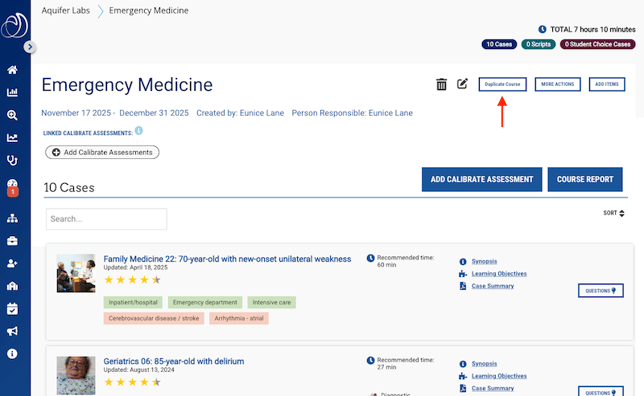
- You will see a modal that allows you to select which parts of the course to duplicate.
Important: The first four items are pre-selected and required. These can be edited after clicking “Save Duplicate,” but cannot be unselected at this point.
All parts of the course can be edited after duplication.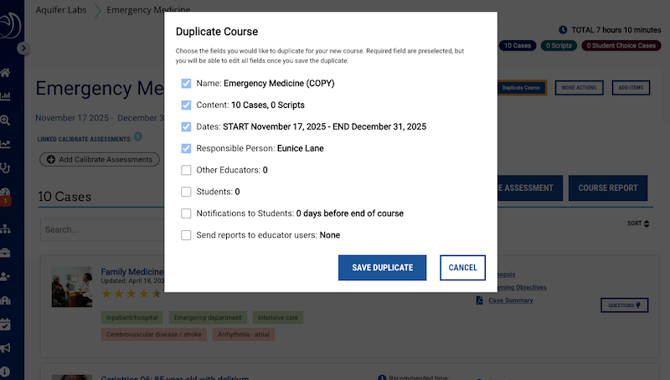
- After clicking “Save Duplicate,” you will be directed to the Edit Page for the new course.
- Make any necessary changes and click “Update Course” to save your changes.
For more information on editing the course once saved, see the parts on editing courses in this article.
Notes & Recommendations
-
Course Name: Use a consistent naming convention that includes course and rotation name, such as 'Family Medicine Clerkship: Block 4'.
- Description: Include the instructor name, instructions for the course, which cases and/or scripts are assigned, due date, and anything else your students need to know.
- Person Responsible: Select the user responsible for the course from your list of eligible administrators. The person responsible will be visible on the course page to all students and administrators associated with the course and will be notified when the course reaches its end date in case they need to extend the date of the course.
- Start Date: Will be visible to all course users.
- End Date: This date will show on the courses page for all associated users. When the end date is reached, the person responsible for the course will be notified and asked if they need to extend the date for this course.
- Copy Users: If you're duplicating a Course to which you have assigned specific student and/or faculty users, you will have the option to copy those users over to your new course.
- Verify the Course Content: You will see a list of content available in the duplicated course. You can remove any items that are not necessary.
- Add or link Calibrate assessments: Don't forget that you can set up or link a Calibrate assessment for a new or duplicated course. This way you can see data for both Cases/Scripts and Calibrate in the same report.