
Before you start
- Make sure you are signed in to Aqueduct.
- Know which case(s) you need to complete.
- Use a supported browser and stable internet connection.
1. Open your case
- Go to your Home page, To-Do List, Courses, or Patient Library.
- Select the assigned or selected case.
- Start or continue the case by clicking the a case section.
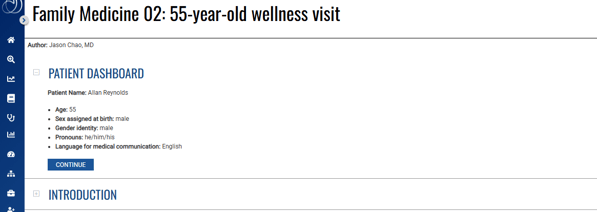
2. Work through the patient encounter
Aquifer cases guide you through the process of a complete patient encounter, including history, physical exam, differential diagnosis, diagnosis and treatment, and management.
As you move through the case, use the tools available to you. You'll be able to:
- Write or edit your diagnosis.
- Record findings.
- View lab values.
- Answer self-assessment questions.
- Submit answers and compare them with correct responses.
- Practice writing summary statements.
- Review teaching points and curricular threads.
- View your case progress at the top of the page.
3. Use self-assessment questions

- Read the question carefully.
- Select or enter your response.
- Submit your answer when prompted.
- Review the explanation or correct response.
- Note concepts you want to study again.
4. Use summary statement feedback when available
- Write your summary statement.
- Submit your statement.
- Review the feedback.
- Revise your thinking based on the feedback.
- Apply the guidance to later cases or patient encounters.
5. Finish the case
- Continue to the end of the case.
- Complete any required feedback questions.
- Confirm that the case shows as complete in your reporting or progress view.
How to know your case is complete

A completed case appears in reporting with a green circle and check mark. If you completed case content but did not answer the required feedback questions or scroll through your next steps, your work may show as partially complete with a yellow circle and percentage complete.
Use your case summary as a study tool
After completing a case, you may be able to access a case summary. Case summaries may include:
- Learning objectives.
- Key clinical knowledge.
- Clinical skills and management.
- Relevant studies and references.
- A date and time stamp for completion.
Use the case summary to review major learning points and prepare for later study. When available, begin related PracticeSmart questions after completing the case.
Resetting a case
A case reset lets you retake an Aquifer case in its original format. This can be helpful if you want to review the case again in a more structured way, with information revealed step by step as you move through the case.
Before resetting a case, check your course or program requirements. Your program may have specific policies about when you should reset a case or whether a reset completion will count toward your course requirements.
What happens when you reset a case
When you reset a case:
- Your progress in the case is cleared.
- Your previous work, answers, and data for that case will no longer be available.
- You will need to complete the case again to record a new completion.
- Faculty and administrators can see case resets in their reports.
- In Student Reports, reset cases are shown with a black outline around the progress circles.
Why reset a case?
Resetting the case removes your previous progress so you can repeat the original case experience. This allows you to move through the case again from the beginning, reveal information step by step, and answer embedded questions and Virtual Patient Encounters again. Your educator may also request that you reset a case if you've previously completed the case or the case was completed with low-time.
How to reset a case
- Go to the Course Detail page for the course that contains the case.

- Find the case you want to reset.
- Select Reset on the case card.
4. Confirm that you want to reset the case.
How to reset a completed case from inside the case
You can also reset a completed case while viewing the case.
- Open the completed case.
- Select Reset Case in the upper-right corner of the case page.

- Confirm that you want to reset the case.
Important reminder
Resetting a case cannot be undone. Once you reset a case, your previous progress and answers are cleared, and you will need to complete the case again to record a new completion.
Completing an Aquifer FAQs
How do I finish a case?
- Check that you reached the end of the case.
- Complete all required questions.
- Complete any necessary case ratings or feedback.
- Return to the Case Summary Download section.
- Refresh the page if needed.
- If the button still does not appear, contact Aquifer Support.
How do I start a case?
Open the case from the location where your program assigned it, such as the Assignments area, a Case Set, or your To-Do List. You can select the case title and it will open for you to complete.
Do I have to complete a case in one sitting?
No. You can leave a case and return to it later. To continue where you left off, reopen the case and continue the case.
How do I know if I finished a case?
A case is usually complete after you reach the end and complete your feedback questions. You will see a green circle with a check at the top of your case with a time stamp to indicate your completion and the time it took for you to complete.
Why does my case still show as incomplete?
A case may still show as incomplete if you did not complete your feedback questions, opened the case from a different location, lost your connection before completion was saved, or completed a different version of the case than the one assigned. Reopen the assigned case and confirm that you completed the final step.
Can I change my answers after I submit them?
Some responses may be saved once submitted and may not be editable. If an answer cannot be changed, use the teaching point or explanation to understand the concept before continuing.
What should I do while working through a case?
Work through the case as if you are caring for a patient. Read the clinical information carefully, answer questions thoughtfully, review teaching points, and use the case summary to connect the encounter to key clinical concepts.
What is the case summary?
The case summary is a review section that highlights important learning points from the case. It may include learning objectives, key clinical knowledge, clinical skills, management points, relevant studies, or references. Use it after completing the case to reinforce what you learned.
Will my instructor know when I complete a case?
Yes, your completion will be visible through course reporting visible to your faculty.