
The Aqueduct Home page is the starting point for your work in Aquifer. From here, you can find assigned courses, return to cases in progress, open your To-Do List, search the Patient Library, access PracticeSmart, and review available assessment or progress information. Understanding the Home page can help you move between assigned work and independent study more easily.
Use this article to understand each area of the Home page and best practices for navigation.
What you can do from the Home page
- Access the To-Do List.
- View assigned and in-progress learning.
- Jump into a course.
- View completed work and case learning time.
- Open My Content Log to find completed or in-progress content.
- Return to content you want to continue reviewing.
How to get to your Home page
- Sign in to Aqueduct.
- If you are not already on your Home page, select Home from the left-hand Menu.
What's on Your Home Page
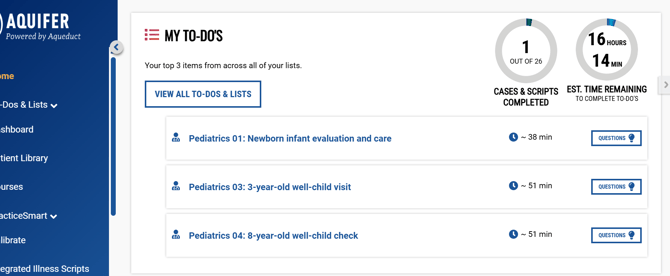
To-do List: Your To-Do List helps you keep track of cases or activities you need to complete or want to return to later. Depending on your course setup, it may include assigned work, saved cases, or related cases you added for follow-up study.
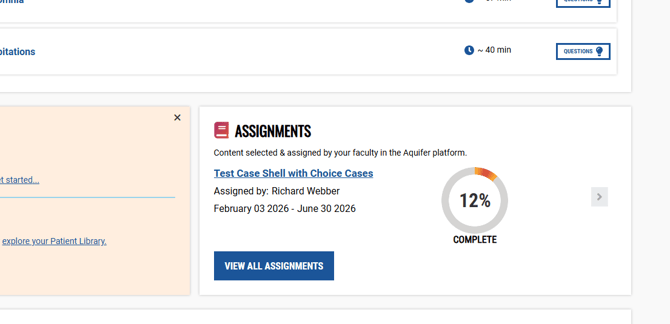
Assignments: The Assignments pane shows work your program has assigned or expects you to complete. Check this area to find required activities, due dates when available, and links to start or continue assigned work.
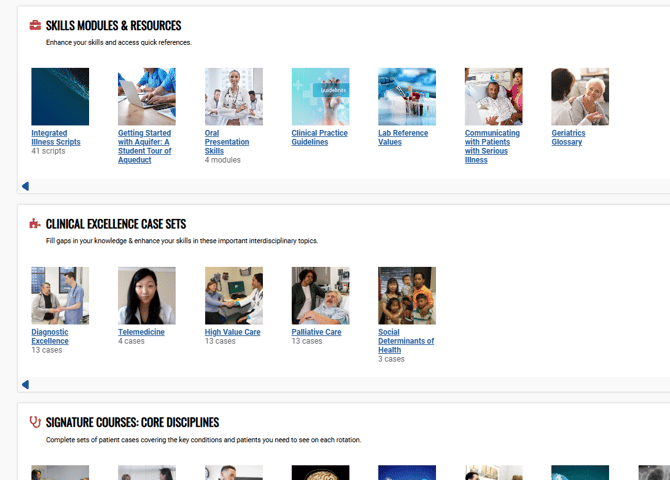
Case Sets: Case Sets are groups of Aquifer cases organized by course, topic, discipline, or learning goal. Use Case Sets to find the cases your program has made available and to work through related cases in one place.
Using Your Menu
|
Navigation area |
Use it to |
|---|---|
|
Home |
Return to your landing page or Home page. |
|
To-Do List |
View faculty-assigned work and content you added yourself. |
|
Patient Library |
Search and filter cases and Integrated Illness Scripts. |
|
Courses |
View assigned courses available through your program or subscription. |
|
Assessment |
Open assigned assessments and PracticeSmart options. |
|
Programs |
Switch programs if you are associated with more than one. |
|
Feedback |
Submit improvement suggestions. |
|
Help |
Open support articles and the Help Desk ticket system. |
|
My Profile |
Update your profile and password. |
|
Log Out |
Sign out of Aqueduct. |
Where to Find Your Reports and Results
-
Use My Content Log for completed or in-progress content.
-
Use Assessment for assigned assessment results such as Calibrate.
-
Use PracticeSmart > Results for PracticeSmart quiz and all-question results.
- Use To-Do List for saved cases, related cases, and review items.
For more details on reports and results, learn to navigate your student dashboard and your student reports.
Home page FAQs
Where do I find my assigned cases or courses?
Start from your Home page and look for your assigned course, case set, or activity. You may also find assigned or saved work in your To-Do List. If you are not sure where your program expects you to work, check your course instructions or contact your course director or coordinator.
What is the difference between assigned work and the Patient Library?
Assigned work is content your program expects you to complete. The Patient Library lets you search across available cases, including cases that may not be required for your course. Use assigned work for required activities, and use the Patient Library for additional study, rotation preparation, or targeted review.
What is the To-Do List used for?
The To-Do List helps you keep track of cases assigned by your educator/coordinator or activities you want to return to later. Depending on your course setup, it may include assigned items, saved cases, related cases from results, or items you added for self-study.
Where do I go to continue a case I already started?
Look for the case from your Home page, assigned course, To-Do List, or My Content Log. Open the case and continue from the last saved point.
Where can I see my completed cases?
You can review completed cases through progress tracking tools such as My Content Log or your course report.
Why can’t I find PracticeSmart?
PracticeSmart may only appear if it is available through your program or subscription. You may be able to access PracticeSmart from the side navigation, from the end of a case, from a case list, or from another area such as your To-Do List. If you do not see PracticeSmart and believe you should have access, contact Aquifer Support or your course coordinator.
Where do I find assessment results?
Assessment results may be available in the Assessment area after you complete an assigned assessment. Availability may depend on the assessment type and your program’s setup.
What should I do if an assigned activity is missing?
First, check your Home page, assigned course, To-Do List, and any course instructions from your program. If the activity is still missing, contact your course director, coordinator, or program administrator to confirm the assignment.