
Your Aquifer account is your entry point to assigned cases, courses, assessments, PracticeSmart, and student reports. You may receive access through your program, an invitation email, your school’s learning system, or an individual subscription. The way you sign in may vary, but once you are in Aqueduct, you can find your assigned work and available study tools from your Home page.
Use this article to sign in, complete your profile, and troubleshoot common access issues.
Complete Your Registration
When you sign in for the first time, you'll need to complete your registration.
If you're a student participating in an institutional subscription: You must receive an invite first - which is sent by your faculty, then use the special link within your invite to access your program within Aqueduct, our learning platform.
-
Check your email for a registration message from Aquifer.
-
Open the registration email and select the registration link.
-
Complete your profile information.
-
Create your password.
-
After completing your profile, you should be brought to your Aqueduct Home page.
If you're a student or other user signing up as an individual subscriber: You can register yourself through the sign up process and log in all at once by sign up on this page.
Signing in to Your Program
- Go to Aquifer.org.
- Select the Log In button.

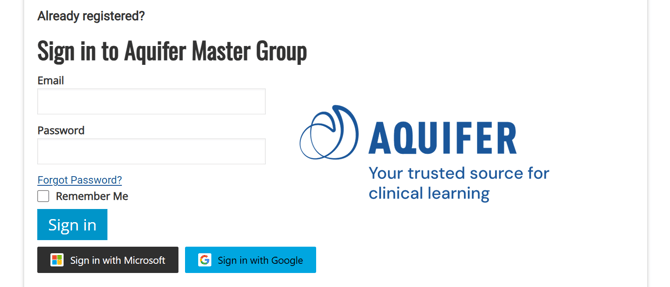
- Sign in with the appropriate method
- If you're using password:
- Enter your institutional email address.
- Enter your password.
- If you're using SSO:
- Select the SSO option (Microsoft or Google) when logging in.
- If you're using password:
Resetting Your Password
- Go to the Aquifer.org and select the Log In button.

- Select Forgot Password.
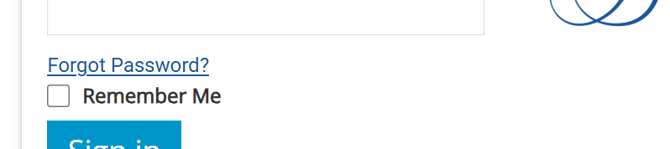
- Enter your account email address.
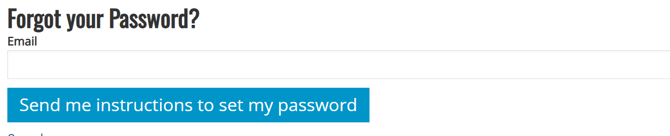
- Select the option to send password reset instructions.
- Check your email for reset instructions.
- If you do not see the email, check your spam or junk folder.
- Open the reset link.
- Enter and confirm your new password.
- Sign in with your new password.
Changing Your Password
- Start logged in to your account. If you're not logged in and need to change your password because you forgot your password, follow the steps for Resetting Your Password.
- On the left side menu, select the orange "person" icon to access your Profile page.
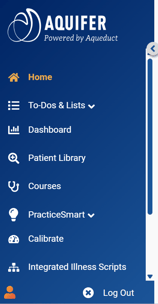
- On the Profile page, select the Edit Password button.

- Enter your new password, confirm the new password by entering it again, then enter your current password.
- Select "Update".
Account Access FAQs
My email address isn't recognized/I'm seeing an error that I need to register but I've already registered
- Confirm that you are using the correct official institutional email address, particularly if you have multiple institutional email addresses. If you're registered to a program, you can check with your faculty or course coordinator on what email address is associated with your account.
- Try logging in again carefully, checking for typos and making sure to keep the Registration area clear.
- If your program confirms your access and the issue continues, contact Aquifer Support.
I never received a registration email
- Check your spam or junk folder.
- Search your inbox for Aquifer or Aqueduct..
- Ask your course director or coordinator to confirm that your email was added, and check what that email address is if you have been issued multiple institutional email addresses.
- If your program confirms your access and you still cannot register, contact Aquifer Support.
My account says I'm Alumni but I shouldn't be
- Take a look at your Program dropdown on your left-side menu and see if your program is listed.
- If your program is listed, select it and you'll have access to your work. Submit a request to Aquifer Support to remove the Alumni from your account.
- If your program is not listed, submit a request to Aquifer Support to restore your account.
My password isn't working/I need to reset my password
Follow the steps in this article.
My account is locked
Follow the steps in this article.